

4.1 Basic Example
Accompanying Workbook: olm_base.xlsx
Opturion Fuel is a small (and fictitious) fuel transport company operating a fleet of semi-trailers. The planner wishes to build a delivery schedule for the delivery of ULP to a single site. We begin by creating an input workbook for use with OLM.
4.1.1 Excel Data Conventions
Before stepping through the input to the optimiser, we describe how various types of data required by the optimiser are represented in Excel.
-
Identifiers
Entities in the optimiser input, such as orders, sites, compartments and axle groups must have an identifier (Id) that uniquely identifies them.These identifiers are used to refer to those entities in the optimiser output.
Identifiers are represented using text or number cells in Excel. Their names must satisfy the following rules:
- They must contain at least one character.
- They must not contain the semicolon (“;” ) character.
Identifiers are not case sensitive or “underscore” sensitive. Whitespace in the identifier name is not significant. For example: “S1”, “s1” and “S_1” are all treated as a reference to the same entity by the optimiser.
4.1.2 Optimiser Input
In this example, our Excel workbook contains six sheets. They are:
-
Orders
This sheet contains details of the orders that we want to deliver. It has the following columns:- Id
The unique identifier for the order. - Site
The identifier of the site where the order is to be delivered. - Product
The identifier of the product being delivered. - Target Volume
The target volume to be delivered for this order. - Maximum Volume
The maximum volume to be delivered for this order.
- Id
-
Sites
This sheet contains details for each site that is referred to in the Orders sheet.It has the following columns:
- Id
The unique identifier for the site. - Weight Scheme
The identifier of the weight scheme that applies for travel to this site.
- Id
-
Products
This sheet contains details for each product that is referred to in the Orders sheet.It has the following columns:
- Id
The unique identifier for the product. - Density
The relative density of the product in kg∕L.
- Id
-
Axle Groups
This sheet contains details for each axle group on the vehicle.It has the following columns:
- Id
The unique identifier for the axle group. - Pin-to-Axle
The distance between the kingpin, or front of the drawbar, to the centre of the axle group. Refer to Figure 16 for further explanation of this measurement. - Turntable
The distance between the kingpin or front of the drawbar, to the turntable. This cell can be left blank if there is no turntable on the axle group (i.e. on the trailer/dolly). Refer to Figure 16 for further explanation of this measurement. - Pin Tare
The tare weight as measured under the kingpin. Can be left blank (i.e. zero). - Axle Tare
The tare weight as measured under the axle group (wheel set). - Axle Count
The number of axles associated with this group. Used to display the correct number of wheels in the visualisation.
- Id
-
Compartments
This sheet contains details for each compartment on the vehicle. It has the following columns:- Id
The unique identifier for the compartment. - Trailer Axle Group
The axle group of the trailer to which this compartment belongs, as defined on the Axle Groups sheet. - Safe Fill Level
The safe fill level (in litres) for the compartment. - Capacity
The capacity (in litres) for the compartment. - Centre of Gravity
The centre of gravity for the compartment, as measured from the kingpin. Refer to Figure 16 for further explanation of this measurement.
- Id
-
Configuration
This sheet contains configuration options for the optimiser.It has the following columns:
- Parameter
The name of the configuration parameter. - Value
The value for the configuration parameter.
- Parameter
-
Weight Schemes
This sheet defines each weight scheme referred to by the Sites sheet and for each axle group defined by Axle Groups sheet. It also defines the GCM (Gross Combination Mass).It has the following columns:
- Id
The unique identifier for the weight scheme. - Axle Group
The identifier of the axle group to which the weight limit applies, as defined by the Axle Groups sheet, or the value GCM (for the Gross Combination Mass limit). Each axle group must have a weight limit. The GCM is optional. - Limit
The weight limit (in kg) on the axle group or GCM.
- Id
-
Forbidden Compartments
This sheet defines the constraints that prevent specific orders from being allocated to specific compartments.Each row represents an order that must not be allocated to a compartment.
It has the following columns:
- Order
The unique identifier for the order. - Compartment
The unique identifier for the compartment.
- Order
For further details, such as sheets or columns not described here, refer to “Opturion Load Manager – Data Formats and Web Service”.
4.1.3 Running the Optimiser
We will now run the optimiser using the dashboard interface. Instructions for accessing the dashboard interface can be found here. After logging in, you will see the screen in Figure 1.
Click the Choose File button and select the workbook file. When the scenario has loaded, the OLM will run and the solution will be displayed. Figure 17 shows an example of this.
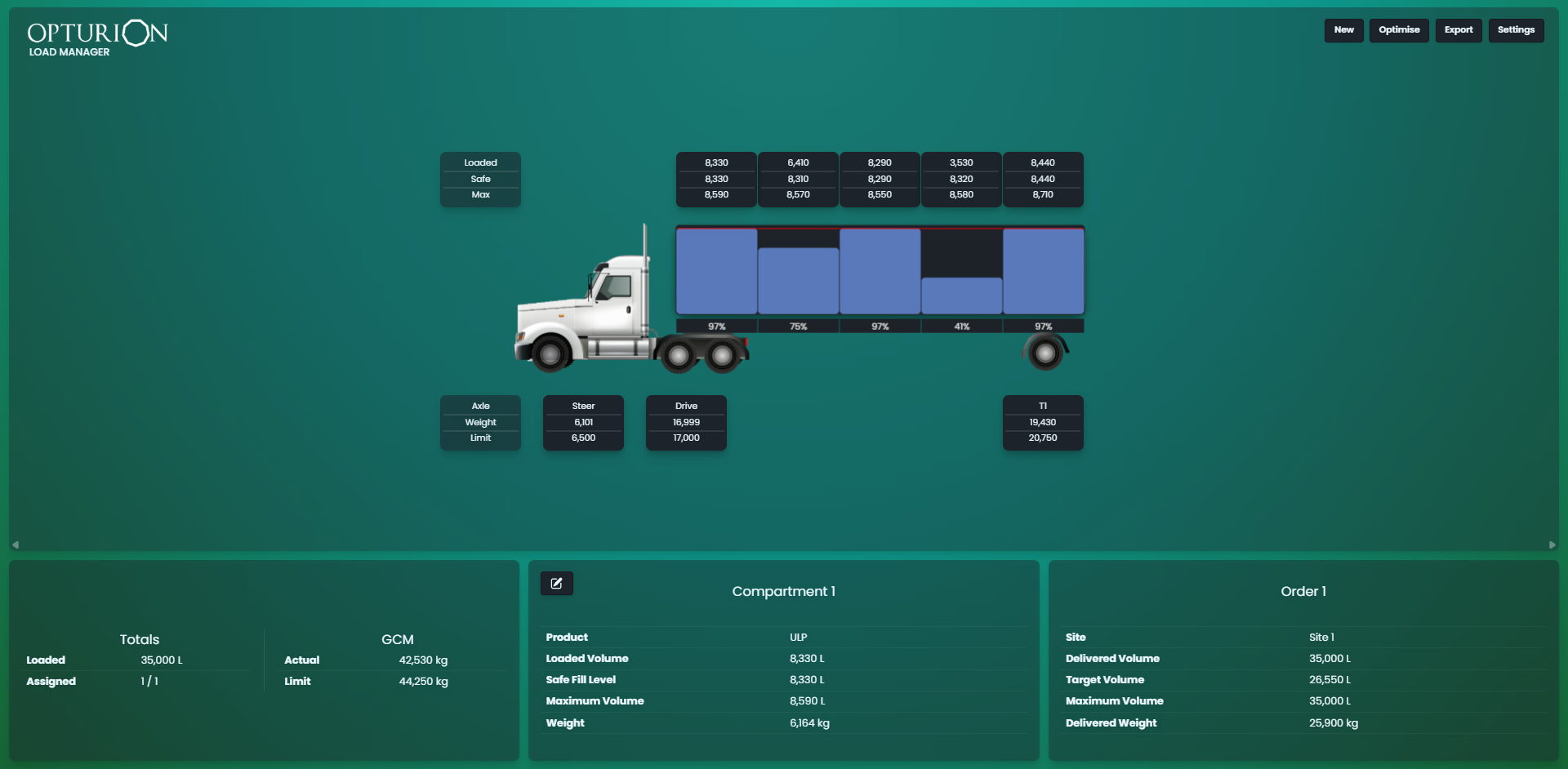
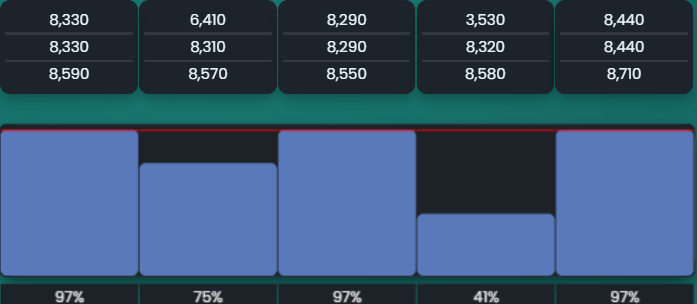
Click the Export button to download an Excel workbook containing the solution produced by the optimiser.
4.1.4 Solution Excel
The Excel workbook you have just downloaded will contain five sheets. These are:
-
Assignments
This sheet contains assignments of (portions of) orders to compartments. It has the following columns:- Order
The unique identifier for the order as defined by the Orders sheet. - Compartment
The unique identifier for the compartment as defined by the Compartments sheet. - Product
The unique identifier for the product as defined by the Products sheet. - Volume
The volume allocated to the compartment. - Weight
The weight allocated to the compartment.
- Order
-
Delivery KPI
This sheet contains a summary of KPIs for the orders. It has the following columns:- Order
The unique identifier for the order as defined in the Orders sheet. - Site
The unique identifier for the site as defined in the Sites sheet. - Product
The unique identifier for the product as defined in the Products sheet. - Target Volume
The target volume to be delivered for this order. - Delivered Volume
The volume that was delivered for this order. - Maximum Volume
The maximum volume to be delivered for this order.
- Order
-
Axle Weights
This sheet contains a summary of axle weights at sites in the solution. It has the following columns:- Axle Group
The unique identifier for the axle group as defined in the Axle Groups sheet.
For each site defined in the Sites sheet there will be a column describing the weight on the axle group when arriving at that site.
- Axle Group
-
Delivery Sequence
This sheet contains a summary of the order in which sites are visited in the solution. It has the following columns:- Site
The unique identifier for the site as defined in the Sites sheet. The sites are visited in the order in which they are listed in this column.
- Site
-
Compliance
This sheet contains a list of all compliance violations found in the solution. These should only be present if the solution has been modified by you as the OLM should only produce solutions which are free of violations. It has the following columns:- Compliance Errors
A compliance error found in the solution.
Note: If no compliance violations were found then this sheet will contain a single entry: No Compliance Errors.
- Compliance Errors