

2.3 Session Manager Interface
The Session Manager interface lets you run multiple optimisation jobs simultaneously. Figure 7 shows the control buttons at the top of the session manager interface.

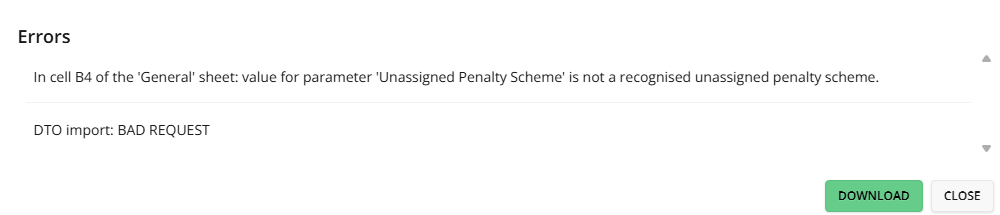
The New button lets you submit a new job for optimisation in the DTO-Excel input format. If the scenario contains errors, then optimisation will not commence and instead an Invalid Instances table will appear at the bottom of the screen. This lets you open a new window or tab that displays the errors.
If the Warnings button appears, then it means that the optimiser has detected potential problems with the scenario. These problems can cause orders to not be assigned or vehicles to not be used. Click the button to see what the potential problems are. Figure 8 shows the interface when errors are present.
The session manager displays KPIs for each in-progress optimisation job. This is shown in Figure 9.

Once an initial solution has been generated the scenario can be selected and the Stop and Export buttons become available. Figure 10 shows a selected job with these buttons available.
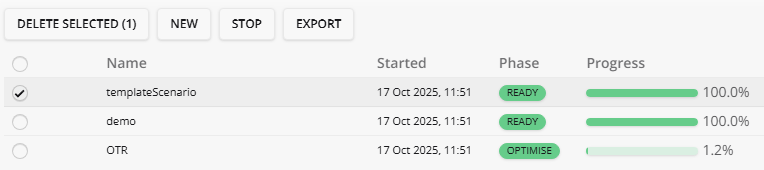
If a scenario has no name in its General sheet, then the name displayed will be the job identifier assigned by the optimiser.
For a description of all the KPIs, see Opturion Dynamic Transport Optimiser – Data Formats